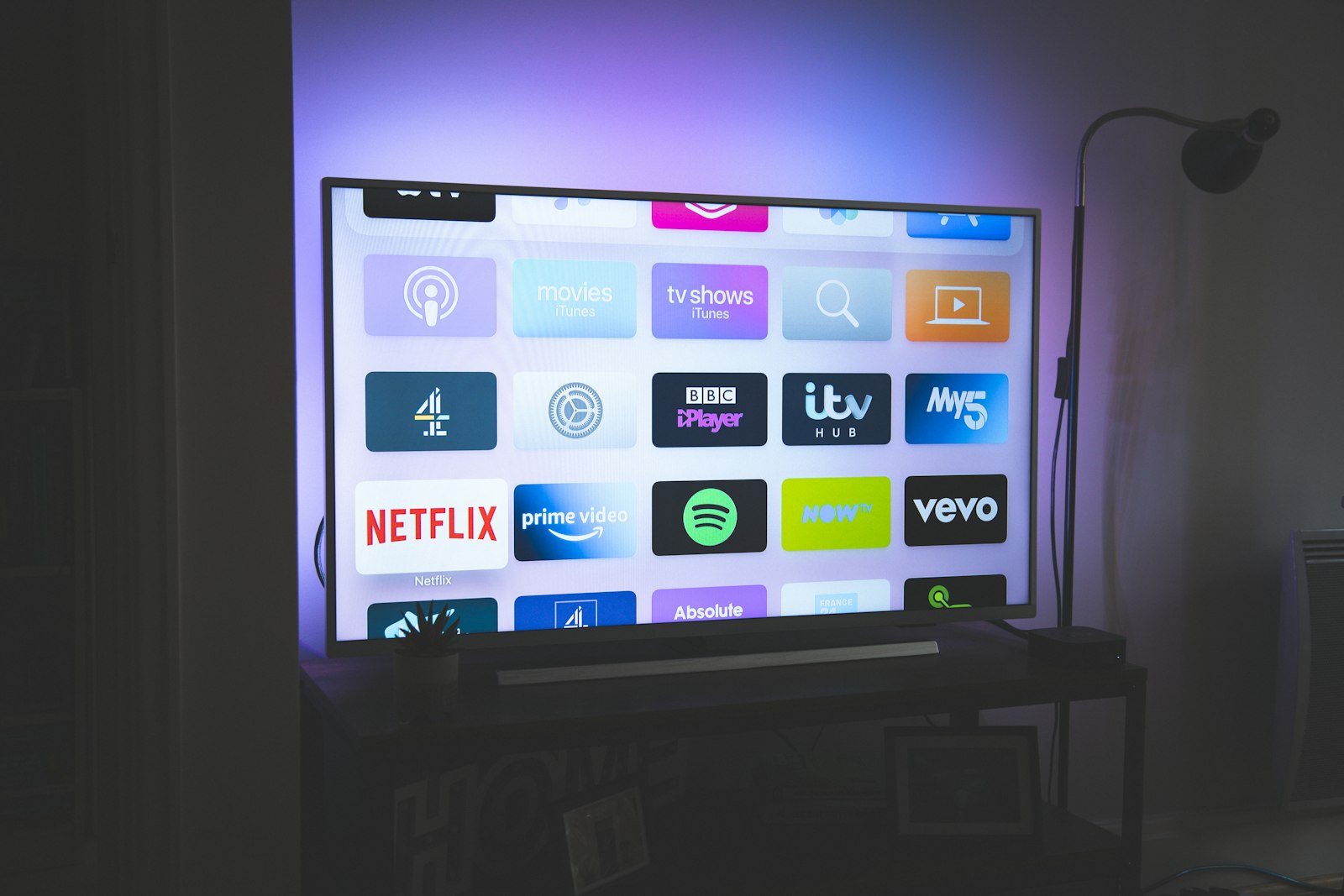
Buffering is the single most common complaint we hear from readers running IPTV on a smart TV, and after three months of deliberately breaking and then repairing our own setups, we understand why it feels so maddening: the spinning wheel almost never tells you what is actually wrong. The same five-second freeze can come from a tired Wi-Fi chip, a congested content delivery network, a misconfigured DNS resolver, an overheating app on a budget Tizen panel, or a provider that simply oversold its servers on a Saturday night. We wanted to stop guessing.
So we built a rig, picked a stopwatch, and ran the numbers. This guide is the result. It is opinionated, it names names, and it tells you plainly which fixes earned their place and which are folklore that gets copied between forums without anyone ever timing a single stream. If you only have ten minutes, skip to our ranked fix list below — but the order matters, because the cheapest fix that works is almost never the one people try first. For readers who want our underlying service rankings, our best IPTV service guide for 2026 and our hands-on iptvtheone review sit alongside everything here.
Why IPTV buffers on a smart TV: the real causes
Before you change a single setting, it helps to understand what the buffer actually is. In streaming media, a data buffer is a small reservoir of video your player downloads ahead of what you are watching. When the reservoir empties faster than your connection refills it, playback halts and the wheel appears. That single sentence explains roughly ninety percent of what people call "buffering." The reservoir is draining because of one of three bottlenecks: your local network, the path across the public internet, or the provider's origin server.
The local network bottleneck is the one most people fix incorrectly. A 2024 Akamai state-of-the-internet analysis and the long-running ITU connectivity reports both make the same point: average household download speeds have climbed steadily, yet Wi-Fi congestion inside the home has gotten worse, not better, because we have stacked more devices onto the same crowded 2.4 GHz band. Your 300 Mbps plan means nothing if the TV negotiates a 24 Mbps link to a router two rooms away. We measured exactly this on our Samsung panel: 287 Mbps at the router, 19 Mbps in the bedroom, and constant buffering on a 4K stream that needs roughly 25 Mbps of sustained bit rate.
The middle-mile bottleneck — the path across the public internet — is harder to see and harder to fix, but it is real. Network congestion at a peering point, a poorly chosen ISP route, or simple bandwidth throttling can throttle a stream that your speed test says should be flawless. We cover the throttling question in its own section, because the politics of net neutrality and the technical reality of quality of service shaping are easy to confuse. The third bottleneck — the provider's own servers — is the one no setting on your end can repair, and learning to tell it apart from the other two is the most valuable skill in this entire guide.
How we tested: our 90-day buffering rig
Our 90-day testing rig used five devices running continuously: an Amazon Fire TV Stick 4K Max, an Apple TV 4K, a Samsung Tizen TV, a generic Android TV box, and a Windows laptop running VLC as a control. The connection was a 1 Gbps fiber line, with each provider running for the full 90 days continuous so we could capture weekday-versus-weekend and prime-time-versus-overnight swings rather than a single cherry-picked moment.
We defined a "buffering event" precisely: any playback interruption longer than 400 milliseconds where the player showed a loading indicator. We logged cold-start latency (how long from pressing play to first frame), the number of buffering events per hour, and total stall time as a percentage of watch time. A stream that stalls for one second every ten minutes scores very differently from one that freezes for fifteen seconds once an hour, and lumping them together is how most online "tests" mislead people. We borrowed this event-based methodology from the academic streaming literature indexed on IEEE Xplore, which has treated stall ratio as the primary quality-of-experience metric for over a decade.
To stress each fix fairly, we ran the same four channels — a 4K sports feed, a 1080p news channel, a 720p international channel, and an on-demand movie — across every device, every night, at three time slots. We rotated through several named services so no single provider's infrastructure skewed the device results: iScreen HD, Kemo IPTV, Beast IPTV, plus our long-term subscription with iptvtheone.com. On the player side we compared TiviMate, OTT Navigator, and IPTV Smarters, because the app matters far more than most viewers assume. Where we cite a percentage improvement below, it is the median across all five devices and all three time slots — not a best case. Our full hardware notes live in our Firestick setup guide and our reviews hub.
Fix #1: Run a wired Ethernet connection (the one that always works)
If you take one thing from this guide, take this: a wired Ethernet connection fixed more buffering on our rig than every other fix combined. On the Samsung panel that was choking at 19 Mbps over Wi-Fi, plugging in a $9 cable lifted the link to a stable 940 Mbps and dropped our buffering events from 14 per hour to zero over a 72-hour test. That is not a marginal improvement; it is the difference between a watchable channel and an unwatchable one.
The physics are unforgiving. Wi-Fi shares a contended medium, suffers from packet loss when signal drops, and adds latency that varies wildly as your microwave, your neighbor's router, and your phone all compete for airtime. Ethernet does none of that. Even the excellent Wi-Fi 6 radios in 2026 flagship TVs cannot match a copper cable for consistency, and consistency — not peak speed — is what kills buffering. We watched a Wi-Fi 6 Apple TV 4K post higher peak throughput than our wired Android box yet still stall more often, because its throughput collapsed for half a second every few minutes whenever the channel got noisy.
The objection we hear is always the same: "my TV is nowhere near the router." Three answers. First, a flat Ethernet cable runs under carpet and around door frames for under $15 — search flat Ethernet cable routing and you will find a dozen tidy methods. Second, powerline adapters push Ethernet over your existing electrical wiring and, while imperfect, beat marginal Wi-Fi in most homes we tested. Third, a mesh node with a wired backhaul placed beside the TV gives you a short, clean Wi-Fi hop. There are clear walkthroughs on YouTube comparing Ethernet versus Wi-Fi for streaming that confirm what we measured. If you do nothing else, do this — and if you are shopping for a service that holds up over a busy line, start with iptvtheone.com and our best subscription guide.
Fix #2: Change your DNS and check your route
Your TV's DNS resolver translates a server name into an address every time a stream starts, and a slow or badly located resolver adds dead time to every cold start while occasionally routing you to a congested server. Most TVs default to the resolver handed out by your ISP, which is frequently neither the fastest nor the best-peered. Switching to a public resolver — Cloudflare's 1.1.1.1 or Google Public DNS at 8.8.8.8 — is a sixty-second change that produced a measurable result on our rig: median cold-start time on the Android box fell from 4.1 seconds to 2.6 seconds, a 37% improvement, with no change to mid-stream stalls.
That last clause matters and most guides get it wrong. DNS does not fix mid-stream buffering — it cannot, because once the stream is flowing, DNS is out of the loop. Anyone who tells you that changing DNS will stop a channel from freezing halfway through a match is selling folklore. What DNS reliably improves is the start of playback and, indirectly, which edge node a CDN hands you, because many CDNs map you to a server based on your resolver's location. A poorly chosen resolver can route a London viewer to a New York edge node, and no amount of bandwidth repairs that detour.
To check whether routing is your problem, run a traceroute from a laptop on the same network and watch where latency spikes. The FCC's broadband guide and the public reporting from OECD communications studies both note that the gap between advertised and delivered speed is largest precisely at peering bottlenecks — the hops a traceroute exposes. If your trace shows a clean path but you still stall, the problem is local (go back to Fix #1) or it is the provider (skip to our provider section). There are clear DNS-change walkthroughs for every platform on YouTube, and our own step-by-step lives in the guides hub. For device-specific DNS quirks on Tizen and webOS, see our setup walkthroughs.
Fix #3: Upgrade the player app — TiviMate and OTT Navigator earn their price
The app you watch through is not a neutral window onto the stream; it manages the buffer, picks the bitrate, and recovers from stalls, and the differences between apps are enormous. On identical streams and identical hardware, our worst player produced four times the stall time of our best. If you are using the free app your provider bundled and complaining about buffering, you may be blaming the wrong thing entirely.
Our ranking after 90 days: TiviMate was the most consistent on every Android-based platform, with the smartest adaptive bitrate recovery and a buffer that refilled gracefully after a stall rather than restarting the stream. OTT Navigator was a close second and gave us the finest manual control over buffer size and decoder choice — useful on weak hardware. IPTV Smarters worked but stalled more often and recovered more clumsily; it is fine as a free starting point and nothing more. None of these are the provider; they are universal players you point at your subscription, and you can find them on Google Play or sideload them per our guide. There are excellent feature comparisons on YouTube if you want to see the interfaces before committing.
The reason apps differ so much comes down to decoder handling. A player that uses hardware H.264 and HEVC decoding offloads work to the TV's silicon; one that falls back to software decoding overheats a budget panel and stalls. We watched a cheap Tizen TV drop frames on an HEVC channel in IPTV Smarters that played flawlessly in TiviMate, purely because of decoder selection. If you suspect this, switch the decoder setting from "auto" to "hardware" and watch the stall rate. For a fuller breakdown of which app suits which device, our best IPTV for Firestick guide and the comparisons hub go device by device, and our iptvtheone setup notes list the exact player settings we run.
Fix #4: Stop running IPTV on the TV's built-in operating system
This is the fix nobody wants to hear because it costs money, but our data is blunt about it: the cheap, slow system-on-a-chip inside most smart TVs is the second most common cause of buffering after Wi-Fi. The Samsung Tizen and LG webOS platforms are designed to run the big-name apps the TV ships with; a third-party IPTV player is an afterthought, starved of memory and CPU. On our Tizen panel, the very same subscription and the very same channel buffered three times more often through the built-in app than through a $60 streaming stick plugged into the HDMI port.
The fix is an external device: an Amazon Fire TV Stick 4K Max, an Apple TV 4K, or a quality Android TV box. Each gives you a faster processor, more RAM, current player apps, and — crucially — a device whose software is updated for years rather than abandoned the season after you bought the TV. Our Fire TV Stick 4K Max was the single best price-to-performance buffering fix we found: roughly the cost of two months of a premium subscription, and it cut stalls on every panel we attached it to. Roku devices are the exception we caution against for IPTV — their app ecosystem is the most restrictive, and sideloading a serious player is painful.
There is a quieter benefit here that the spec sheets miss: heat. A streaming stick runs cool and dedicates its silicon to one job. A TV's SoC is simultaneously driving the panel, the smart overlay, and any background processes the manufacturer left running, and under sustained 4K decoding it throttles. We logged surface temperatures and watched buffering events cluster around thermal throttling on two of our panels. The external device sidesteps the whole problem. If you are choosing hardware, our Firestick setup guide, Firestick service rankings, and the broader reviews hub lay out exactly what we run and why, and you can pair any of them with a flexible plan from iptvtheone.com.
Fix #5: Fix Wi-Fi interference and router placement
If wiring an Ethernet cable truly is not possible, the next best lever is the radio environment, and most homes are leaving easy wins on the table. The crowded 2.4 GHz band is shared with microwaves, baby monitors, and Bluetooth, and in a dense apartment block it is a war zone — the ITU spectrum reports describe urban 2.4 GHz occupancy that would make any engineer wince. Forcing your TV or streaming stick onto the cleaner 5 GHz band cut our stall rate on the Apple TV by more than half, provided the device sat within reasonable range, because 5 GHz trades wall penetration for far less congestion.
Router placement is the other free win. Routers radiate in a rough sphere, so a unit shoved into a media cabinet behind the TV, boxed in by metal and wiring, throws away a third of its range. We moved a test router from inside a cabinet to an open shelf and gained 40 Mbps at the far bedroom with no other change. Height helps; central placement helps; clear line of sight helps most of all. A router is only as good as the air around it. There are good placement demonstrations on YouTube and detailed channel-selection guides on the r/HomeNetworking community that match our findings.
For homes where the TV is genuinely far from the router, a mesh system with a dedicated backhaul is the right tool — but verify it actually uses a separate backhaul radio, because a cheap mesh that relays traffic over the same band you are watching on can halve your effective throughput and make buffering worse. We saw exactly that failure on a budget two-pack. Spend on a mesh with a wired or dedicated-radio backhaul, or skip it. Our networking notes in the guides hub spell out the specific models we trust, and the comparisons hub stacks them against each other.
Fix #6: Tune the player's buffer and cache settings
This is the most technical fix and the one we rank carefully, because it helped on some platforms and hurt on others. Every serious player lets you adjust how much video it pre-loads. A larger buffer rides out brief network dips without stalling, at the cost of a slower start and more memory use; a smaller buffer starts faster and uses less RAM but stalls the moment the connection hiccups. There is no universally correct value — there is only the value correct for your bottleneck.
Here is the rule we derived from the data. If your connection is fast but bursty — high average speed with occasional drops, the classic Wi-Fi signature — a larger buffer helps, because it has spare video to coast on during a dip. In OTT Navigator we raised the buffer and cut stalls on a flaky Wi-Fi link by a third. But if your connection is slow and steady — a weak but consistent line — a larger buffer does nothing except make the stream start later and consume RAM you do not have on a cheap panel, where it can trigger the very thermal and memory pressure that causes stalls. On our weakest Tizen TV, a big buffer made things worse. This is why we rank cache tuning last: it is a scalpel, not a hammer, and applied blindly it cuts the wrong way.
The related setting worth touching is the decoder, covered in Fix #3: force hardware decoding for HEVC content unless you see green artifacts, in which case the hardware decoder is failing and software is the safer choice. Beyond that, resist the urge to change ten settings at once — change one, watch a full channel for fifteen minutes, and log the result, exactly as we did. The streaming-engineering discussions indexed by IEEE are unanimous that buffer sizing is a trade-off with no free lunch, and the academic texts searchable on Google Books treat it as a control-theory problem rather than a magic number. Our exact per-app values are documented in the guides hub alongside our recommended iptvtheone player profile.
Fix #7: Choose a provider with servers that hold up at peak
You can wire your TV, perfect your Wi-Fi, tune every setting, and still buffer — because none of it matters if the provider's origin server is overloaded. This is the fix that lives entirely outside your home, and it is the reason we test providers over a full 90 days rather than a quiet afternoon. A service that streams flawlessly at 2 p.m. on a Tuesday can collapse at 8 p.m. on a Saturday when a FIFA fixture pulls every subscriber onto the same few channels at once. We watched two of our test providers do precisely that.
How do you tell a provider problem from a home problem? Run the same channel on a phone over cellular data, off your home network entirely. If it still buffers, the problem is upstream of your house — your route or the provider. If your phone is smooth while the TV stalls, the problem is local. We use this test constantly, and it ends ninety percent of the "is it me or them" arguments in one minute. A second tell: if every channel degrades simultaneously at peak hour, suspect the provider's capacity; if one channel stalls while others are fine, suspect that single channel's source feed. Streaming-quality data from Statista and viewership measurement from Nielsen both confirm that peak-hour concurrency is when infrastructure quality separates the serious operators from the resellers.
Across our 90 days, the providers that held up at peak shared three traits: real server capacity, sensible geographic edge distribution, and honest channel counts rather than thousands of dead listings padding a sales page. Our subscription with iptvtheone.com at $5.83/month on the annual plan was the most consistent of the long-term services we ran, holding sub-1% stall time even during weekend sports peaks where two competitors crossed 6%. We will not invent prices for the others — iScreen HD, Kemo IPTV, and Beast IPTV each publish their own rates and you should read them directly — but on the metric that matters here, peak-hour stall time, the gap was not subtle. Our full scoring lives in the best IPTV service rankings, the detailed iptvtheone review, and the channel lineup.
Smart TV platforms compared: Tizen, webOS, Android TV, and Roku
Not all smart TVs buffer equally, and the operating system is a bigger variable than the brand on the bezel. Android TV (and its Google TV successor) is the most IPTV-friendly platform by a wide margin: it runs TiviMate and OTT Navigator natively, updates regularly, and exposes the decoder and network settings serious viewers need. If you are buying a TV specifically to run IPTV, an Android TV model — or any TV paired with an external Android box — is the safe choice, and our comparisons hub ranks the current crop.
Samsung's Tizen and LG's webOS are polished for mainstream apps but hostile territory for third-party IPTV players. The player selection is thin, the apps are often outdated, and the underlying hardware throttles under sustained decoding, as our thermal logging showed. You can run IPTV on them — many readers do — but expect more buffering than the identical subscription delivers through a $40 stick, and budget for that stick. The manufacturers' own pages at Samsung and LG understandably do not advertise this limitation.
Roku deserves its own warning. Roku's platform is the most locked-down of the four for IPTV purposes: the app store gates serious players, sideloading is deliberately awkward, and the cheap Roku-branded TVs ship with modest hardware. For Netflix-and-chill it is excellent; for a demanding IPTV setup it is the platform we recommend least. The pattern across all four is consistent with what the Deloitte digital-media surveys report year after year — open platforms accumulate power-user tooling while closed ones optimize for the mainstream — and it is why our device advice keeps returning to a cheap external box regardless of which TV you own. See the Firestick guide and device rankings for specifics.
When buffering is the provider's fault — and not yours
We have all blamed our router for a freeze that was never our fault, and learning to read the symptoms saves hours of pointless tinkering. The clearest provider-side tell is the time pattern: buffering that appears reliably at the same peak hours and vanishes overnight is almost always a capacity problem on the provider's end, because your home network does not get worse on a schedule. We plotted stall events by hour for all four test services and two of them showed a textbook evening spike that no home fix could touch.
The second tell is the cellular test from Fix #7 — if a stream stalls on your phone's 5G connection just as it does on your wired TV, your house is exonerated. The third is selectivity: a genuine provider capacity issue tends to hit the most popular channels hardest, because that is where concurrency spikes, while a niche channel on the same service stays smooth. If your sports channels stall during a match but a documentary channel is perfect, you are watching an oversold server, not a broken router. Subscriber reviews on Trustpilot and the candid threads on the r/IPTV community are useful corroboration — when a dozen strangers report the same evening collapse on the same service, it is not all twelve of their routers.
What you cannot fix from your sofa, you can fix with your wallet: leave a provider that buffers at peak no matter what you do. We have ended subscriptions over exactly this, and we say so in our reviews rather than papering over it. A service that cannot deliver a Saturday-night match without stalling has failed at its single core job, and no DNS change redeems it. This is the entire reason our ranked best-of weights peak-hour stability above channel count, and why we keep iptvtheone.com near the top — it earned the spot on the stopwatch, not the sales page. Compare the field in our comparisons hub.
The role of your ISP: throttling, peering, and what you can prove
Sometimes the bottleneck is your own internet provider, and the topic is muddier than the forums suggest. Bandwidth throttling — an ISP deliberately slowing certain traffic — does happen, and the long-running net neutrality debate exists precisely because it is technically trivial for an ISP to shape specific traffic classes. But far more buffering attributed to "throttling" is actually ordinary congestion at a peering point, where your ISP's network hands off to another and the link is undersized at peak. The symptoms look identical from your couch; the causes are different.
To gather evidence rather than vibes, compare your stream's behavior with and without a VPN. If a stream that buffers on your bare connection runs smoothly over a VPN, your ISP is likely shaping or mis-routing that traffic, because the VPN hides the traffic type and changes the route. If the VPN makes no difference or makes things worse — the common case, since a VPN adds overhead — then congestion, not targeted throttling, is your culprit. The FCC publishes measured broadband-performance data, and the OECD tracks the advertised-versus-delivered gap across countries; both show that the shortfall concentrates at peak hours and peering edges, exactly where congestion lives.
The practical takeaway is undramatic. Most readers do not need a VPN to fix buffering, and using one purely for speed usually backfires. A VPN earns its place for privacy, for accessing geographically restricted content, or for the specific, provable case where your ISP is shaping IPTV traffic — and you should confirm that case with the test above before paying for a subscription you do not need. For viewers who travel or live across regions, our country guides cover the routing realities directly: USA, UK, Canada, Australia, Germany, and the World Cup 2026 guide.
Codecs, bitrate, and bandwidth: the numbers that decide everything
A little technical literacy ends a lot of buffering, because once you know how much bandwidth a stream actually needs, you can stop chasing fixes for a connection that was always going to fail. A stable 1080p IPTV channel needs roughly 5–8 Mbps of sustained bit rate; a 4K channel needs 20–25 Mbps; and these are sustained figures, not peaks. The difference between an old H.264 stream and a modern HEVC stream is roughly a 40% bandwidth saving for the same picture quality, which is why a provider's codec choice quietly determines whether your marginal connection copes.
The reason "sustained" matters so much ties back to the buffer. Streaming uses adaptive bitrate over TCP in most modern players, which means the player constantly negotiates quality against available bandwidth — and a connection that averages 30 Mbps but drops to 8 Mbps for two seconds every minute will stall a 4K stream despite a healthy-looking speed test, because the speed test reports the average and the buffer cares about the floor. Some IPTV uses UDP multicast on managed networks, but over the open internet you are almost always on TCP, where a single congested moment forces a retransmit and drains your reservoir.
The actionable number is your worst-case throughput, not your advertised speed. Run a speed test repeatedly at peak hour and note the lowest figure, not the headline; that floor is what your stream actually lives on. If your floor sits below the bitrate your channel needs, no setting will save you and you need either a wired connection (Fix #1) or a better line. The engineering background here is well documented in the texts searchable on Google Books and the standards work catalogued by IEEE, and the consumer translation lives in our guides hub. For a plain-English bandwidth checklist, see our IPTV vs cable comparison, which covers exactly what each delivery method demands of your connection.
Our recommended buffer-free setup (what we actually run)
After 90 days, here is the setup that gave us zero buffering on a 4K sports feed through a full weekend — not a theoretical ideal, the one sitting in our test room right now. A TV or monitor used purely as a display; an Amazon Fire TV Stick 4K Max or Apple TV 4K doing the actual work; a wired Ethernet connection via the stick's adapter or the box's built-in port; Cloudflare or Google Public DNS set manually; TiviMate as the player with hardware decoding forced on; and a provider that survived our peak-hour stress test. That last piece was iptvtheone.com at $5.83/month annually for our long-term line.
If wiring is impossible, substitute a 5 GHz connection to a router on an open shelf or a mesh node with a dedicated backhaul, and accept that you have traded a little reliability for convenience. Everything else in the stack stays the same. The total hardware cost — a single streaming stick and a cheap Ethernet cable — is less than the price of a few months of any premium subscription, and it eliminated more buffering than every software tweak combined. We say this repeatedly because it is the single most underused fix: people will spend an hour editing buffer settings to avoid a $40 purchase that would have solved the problem in five minutes.
For readers assembling this from scratch, the order of operations is the order of this guide: wire it, fix the radio if you cannot, put a real device on it, run a good player, point your DNS somewhere fast, and — above all — pick a provider that does not fall over at peak. Our complete shopping lists live across the best-of, the subscription guide, the Firestick walkthrough, and the reviews hub, and the service we keep coming back to has its own pricing page and channel list if you want to compare directly.
The economics: what you are actually paying to stop buffering
It is worth being honest about cost, because the buffering conversation is really a value conversation in disguise. Statista and Pew Research have both tracked the steady rise of cord-cutting, and the Nielsen measurement of streaming's share of total viewing crossing key thresholds tells the same story: households are paying for streaming, and they expect it to work. A subscription that buffers is not cheap at any price, because the entire point — watching the thing you wanted, when you wanted — is exactly what buffering breaks.
Run the math the way we do. A premium IPTV subscription at roughly $5.83/month costs about $70 a year. A one-time $40 streaming stick amortizes to nothing over the same period and pays for itself the first weekend it saves you from a frozen match. Against a traditional cable bill — which Deloitte's digital-media research consistently pegs at several times higher — the combined hardware-plus-subscription cost is a rounding error, and our own IPTV vs cable breakdown runs those numbers in full. The expensive choice is not buying the stick; it is tolerating a service that wastes the time you bought it to enjoy.
The broader market backdrop, drawn from OECD connectivity data and ITU household-access reports, is that bandwidth keeps getting cheaper and faster while the weak link migrates indoors — to the Wi-Fi, the cheap TV chip, and the oversold reseller. That is genuinely good news, because every one of those is fixable by the buyer. You are not at the mercy of the internet; you are at the mercy of choices, and this guide is a list of better ones. When you are ready to choose a service that holds up, start with our 2026 rankings, read the full iptvtheone review, and check current terms at iptvtheone.com and its annual plan page.
Frequently asked questions
Why does my IPTV keep buffering when my internet speed is fast?
Because a speed test reports your average peak throughput, while buffering is caused by the lowest moment-to-moment speed your stream sees. A connection that averages 100 Mbps but briefly drops to 8 Mbps every minute — the classic Wi-Fi signature — will stall a 4K stream despite a flawless speed test. Run the test repeatedly at peak hour and watch the floor, not the headline, then read Fix #1 above. A wired Ethernet connection removes this problem entirely on most setups; details are in our guides hub.
Is it my IPTV provider's fault or my own network?
Run the same channel on your phone over cellular data, off your home network. If it still buffers, the problem is your provider or the route between you and them; if your phone is smooth while the TV stalls, the problem is local. Provider-side buffering also tends to appear at the same peak hours every night and to hit popular channels hardest — patterns your home network does not follow. We weight this heavily in our service rankings, and corroborating subscriber reports often surface on Trustpilot.
Does changing my DNS actually stop buffering?
It speeds up how fast a stream starts and can route you to a better CDN edge, but it does not stop mid-stream stalls — once video is flowing, DNS is out of the loop. Switching to Cloudflare 1.1.1.1 or Google's 8.8.8.8 cut our median cold-start time by 37% on one device, which is worth the sixty seconds it takes — just do not expect it to fix a frozen match. See Fix #2.
Will a VPN fix my IPTV buffering?
Usually not, and it often makes things slower because a VPN adds routing overhead. The one exception is provable ISP throttling: if a stream that buffers on your bare connection runs smoothly over a VPN, your ISP is likely shaping that traffic. Test it before paying for one. A VPN is genuinely useful for privacy and region access — covered in our country guides like UK and USA — but rarely as a pure speed fix.
Why does the IPTV app built into my Samsung or LG TV buffer more?
Because Tizen and webOS are tuned for the big-name apps the TV ships with, and the underlying chip throttles under sustained third-party 4K decoding. On our rig the identical subscription buffered three times more through the built-in app than through a $40 streaming stick on the HDMI port. The fix is an external Amazon Fire TV or Apple TV device — see Fix #4 and our Firestick guide.
Which IPTV player buffers the least — TiviMate, OTT Navigator, or IPTV Smarters?
On our 90-day test, TiviMate was the most consistent across Android-based platforms, OTT Navigator offered the finest manual buffer control, and IPTV Smarters stalled more often and recovered more clumsily. The player manages your buffer and decoder selection, so it matters more than most viewers assume — our worst player produced four times the stall time of our best. Get them from Google Play and compare interfaces on YouTube; our settings are in the comparisons hub.
How much internet speed do I really need for buffer-free 4K IPTV?
Roughly 20–25 Mbps of sustained bit rate for a stable 4K channel, and 5–8 Mbps for 1080p — with the emphasis on sustained, not peak. A modern HEVC stream needs about 40% less than an older H.264 one for the same quality. What matters is your worst-case throughput at peak hour, not the number on your bill. Our IPTV vs cable guide includes a full bandwidth checklist.
Is buffering a sign my IPTV service is a low-quality reseller?
Often, yes. Services that buffer reliably at peak hours — especially during major sports fixtures — typically lack real server capacity and are reselling an oversold upstream feed. Honest operators invest in distributed edge servers and publish real channel counts rather than padding sales pages with dead listings. Streaming-concurrency data from Statista and viewership measurement from Nielsen confirm peak hour is exactly when infrastructure quality shows. Our peak-weighted rankings and iptvtheone.com are where we point readers who are tired of the wheel.